
Creating Outgoing Invoices and Tracking Payments
Issue customer invoices, track due dates, record partial payments, and manage outstanding receivables.
What You Will Accomplish
Professional billing workflow that updates your accounts receivable and forecasts upcoming cash inflows.
- Customer business name and email
- Configured company profile details
Step-by-Step Instructions
Go to Invoices & Bills
Navigate to Invoices > Outgoing Invoices in the sidebar.
Click Create Invoice
Click '+ New Invoice' to open the invoice builder.
Add Client & Line Items
Select customer, payment due date (e.g. Net 14 or Net 30), and add products or services with pricing and tax rate.
Send or Download PDF
Save the invoice draft, generate an official PDF, or email it directly to the customer.
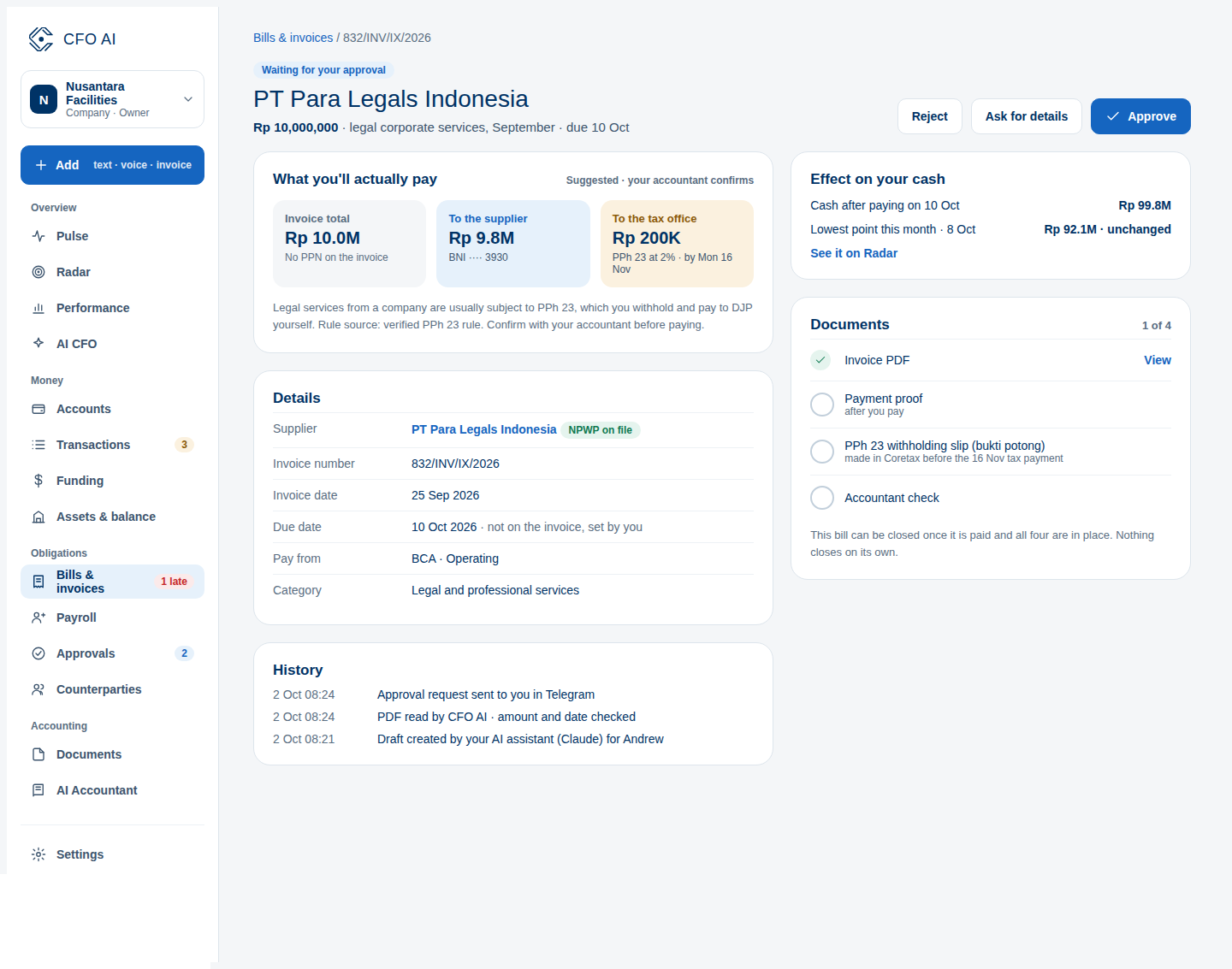
Expected Result
Common Errors & Troubleshooting
Click 'Record Payment' on the invoice detail page and enter the partial received amount; the remaining balance remains tracked.